How do I connect my vehicle to the app?
Perform the following steps to connect your vehicle and the app.
1.On your smartphone, confirm that your Bluetooth is set to “ON” and that Location Services are enabled.
2.On the vehicle’s instrument panel, set the Bluetooth to “ON.”
3.Tap the "+" button at the top of the app's home screen and select your vehicle.
4.When the app detects the Bluetooth signal, you will be prompted to enter a PIN. Enter the PIN displayed on the instrument panel.
5.When the PIN is entered, the vehicle and app will be connected.
For details, please refer to the
bimota App User Manual.
When I select “Add New Vehicle,” the vehicle I want to link to is not showing.
If one of the following conditions is true, the vehicle will not show.
・If the Bluetooth connectivity status in the instrument panel or smartphone is not enabled.
In either case, please delete your vehicle from the list of connected devices in your smartphone Bluetooth setting, and set up a new connection from the app.(Please be careful not to connect directly to the vehicle from your smartphone Bluetooth setting.)
My vehicle is not connecting automatically to Bluetooth.
Select the vehicle from the vehicle list on the home screen and manually connect via Bluetooth.
The Bluetooth icon is showing on the vehicle instrument panel, but the app is not pairing.
In your smartphone Bluetooth settings, delete your vehicle from the list of connected devices, and try setting up the Bluetooth connection again.
I cannot enter the PIN code.
Please check to make sure there is no Bluetooth pairing in your smartphone’s notices.
When my vehicle connected to the app, the app stopped working.
For your safety, the app will not work if one or more of the following conditions is true.
・Your vehicle is not in neutral
・Your vehicle is moving (speed is not equal to zero)
・The throttle is open
・Vehicle data cannot be accessed
How do I reset the information in a smartphone I have paired with?
Please follow the steps below to reset the information in a smartphone you have paired with.
1.Connect the vehicle and smartphone.
2.In the app “Settings” / Initial Settings, select “Reset” in “Bluetooth Connection.”
3.Check that the Bluetooth icon has disappeared from the instrument panel.
When selling or transferring your vehicle, please be sure to erase the pairing history.
I cannot enter the filename for the tuning settings file.
The filename will be sent to the vehicle, so only half-space alphanumeric characters are allowed. If you want to keep track with double-byte characters, please make a memo.
I cannot change the vehicle settings.
If any of the following conditions are true, the vehicle settings cannot be changed.
・Your vehicle does not support vehicle setting changes from the app.
Please check the supported models
here. ・An error is showing on the vehicle instrument panel.
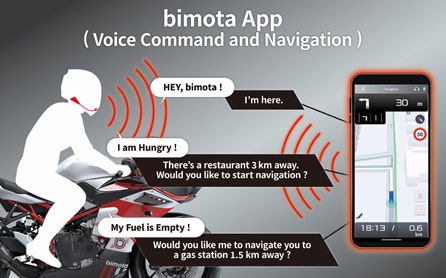
Voice Command is not available.
The following problems may be occurring.
- Language data has not been downloaded.
Go to App Settings, then Voice Settings and select the language you wish to use, then download the language data.
- App permission settings are not sufficient.
Check if there are any permissions missing from App Settings > Permission Settings.
A headset is required for Voice Command. Connect a headset and start the app.
- ice Command is not enabled.
Check if Voice Command is enabled from App Settings > Voice Settings.
- Smartphone does not meet the required specifications.
If your smartphone has less than 3GB of RAM, the app may crash. 4GB of RAM or more is recommended.
Check if the license is valid from App Settings > License List.
Cannot retrieve vehicle information.
Vehicle information cannot be obtained unless the vehicle and the app are connected. Check if the vehicle and the app are connected.
Navigation cannot be used.
The following are possible causes.
- Not connected to the Internet.
Navigation requires an Internet connection. Check if you are connected to the Internet and try again.
- App permission settings are not sufficient.
Check if there are any permissions missing from App Settings > Permission Settings.
- Smartphone does not meet the required specifications.
If your smartphone has less than 3GB of RAM, the application may crash. 4GB of RAM or more is recommended.
Check if the license is valid from App Settings > License List.
Cannot hear voice in navigation
The following are possible causes.
- The headset has not been activated.
Check if Voice Command is enabled from App Settings > Voice Settings.
- Headset is not connected.
A headset is required for the navigation's voice guidance. Start the app after connecting a headset.
- Voice navigation guidance is turned off.
Check if voice navigation is turned from App Settings > Navigation Settings.
- The intercom's volume is too low.
Check if the headset volume has been set too low.
Voice Command may be interrupted or unavailable during navigation.
Sorry, but while navigating, the navigation guidance voice has the highest priority.Try again with the navigation system guidance inactive.
Voice Command and navigation licenses cannot be activated.
The following problems may be occurring.
- Not connected to the Internet
An Internet connection is required for activation. Make sure you are connected to the Internet and try again.
Make sure that your license has not expired.
- Attempting activation outside a supported country
Activation is available only in supported countries. Please refer to the list of supported countries here.
- Eligibility requirements not met
To activate the Voice Command and Navigation features, you must meet the eligibility requirements described here.
Sorry, but there may be a temporary system failure. Wait a moment and try again.
How do I activate the Voice Command and Navigation features?
Open "License Activation" from the Settings screen in the top-right corner of the app's home screen and activate the feature.
To activate the Voice Command and Navigation features, you must meet the eligibility requirements described here.
I would like to use this app with my new vehicle. Will I be able to keep the riding log data from my old vehicle?
Yes, the old data will remain. Even if you change vehicle types, your old riding logs will all be saved.
I updated my phone to a new smartphone. Will I be able to keep my riding log data?
Yes, even when you change smartphone types, all your riding log data will be preserved in the Cloud storage.
How many hours is the longest possible riding log?
From the start of the riding log, 24 hours can be recorded. To protect your smartphone’s battery,
the riding log will automatically end when your remaining battery charge goes below 10%.
What is the R. Score?
It is an indicator of how enjoyable a ride was.
On the map, 4 levels of colour are used; the deeper the colour, the more enjoyable that part of the ride was.
What is the key mark at the top-right of the riding log?
The key mark indicates that the riding log has not been shared publicly. Making the riding log public allows you to share your riding data with other riders.
While recording a riding log, I accidentally turned off the app. Can I still see the riding log up to that point?
Once per day, forcibly terminated riding logs are recovered. Please wait up to 24 hours.
The animation is not playing properly.
The animation may not play properly on some types of smartphone.
After I recording a riding log, my stats did not change.
Statistics are updated daily at 00:00 (standard time). Please wait until they have been updated.
The results from my riding log are not being reflected in the ranking.
Rankings are updated four times a day. Please wait until they have been updated.
If my vehicle is stolen, does this app have a GPS function that I can use to track my vehicle?
No, this app does not prevent theft, nor can it be used to locate a stolen vehicle. Please take necessary precautions to keep your vehicle safe from theft.
Is there a way to reduce battery expenditure on my smartphone?
By reducing GPS accuracy it is possible to reduce the drain on your battery.
Battery expenditure decreases as you switch GPS accuracy from “High” precision, to “Balance,” to “Save Battery” modes. In the app settings, go to Data control / GPS accuracy settings and select the setting you prefer.
iOS is a trademark or registered trademark of Cisco in United States of America and other countries and is used under license.
Android is trademarks of Google LLC.